How to Use Claude Code with Agent Router | Vishal Kushwaha
Introduction
Claude Code is Anthropic's AI coding assistant that helps developers write, debug, and understand code faster. Normally you access Claude through Anthropic's official subscription or the Claude.ai platform.
Agent Router is a third-party API gateway that sits between your tools and AI models. It lets developers route requests to various AI providers, including Claude, through a single unified API interface.
In this guide you'll configure Claude Code to work with Agent Router, so you can:
- Access Claude models through an alternative API gateway
- Manage API credentials securely
- Understand the request flow from your IDE to Anthropic's servers
- Troubleshoot configuration issues
- Follow security best practices
Prerequisites
Before starting, make sure you have:
- Claude Code installed on your system (Windows, macOS, or Linux)
- An active Agent Router account (a free account is available)
- A valid Agent Router API key, generated and stored securely
- Terminal or command-line access on your machine
- Basic understanding of environment variables and how to set them
Step 1: Install Claude Code
Windows
- Download the Claude Code installer from the official Anthropic website
- Run the installer (.exe file)
- Follow the installation wizard
- Choose your installation directory
- Complete the setup
Verify the installation by opening PowerShell and running:
claude --version
macOS
Using Homebrew (recommended):
brew install anthropic/claude/claude-code
Or download directly from the Anthropic website and drag the application to your Applications folder. Verify with:
claude --version
Linux
Download the package for your distribution, or use your package manager:
# Ubuntu / Debian
sudo apt-get install claude-code

# Fedora / RHEL
sudo dnf install claude-code
Verify with:
claude --version
Step 2: Create an Agent Router Account
Visit Agent Router's official website.
Heads up: the website is currently in Chinese. To read it in English, let Chrome offer to translate the page, right-click and choose "Translate Page to English" in Firefox, or paste the URL into Google Translate.
On the login page you'll see three authentication options:
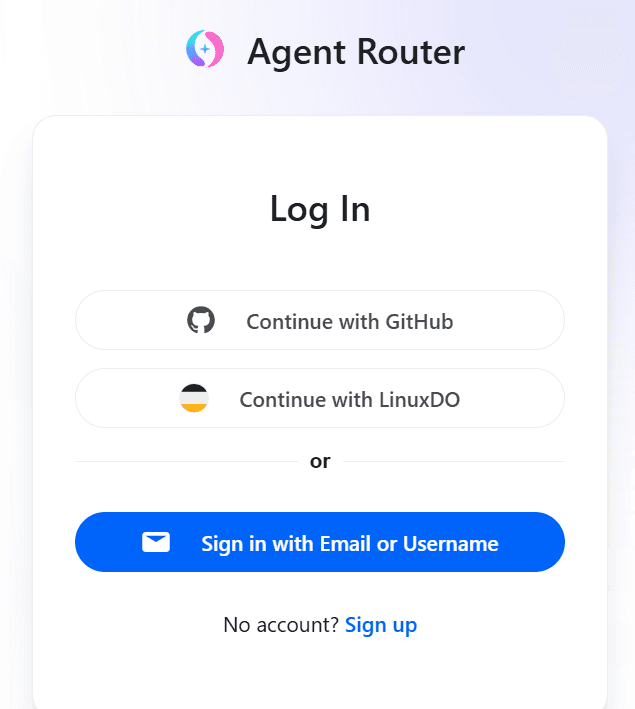
Recommended: continue with GitHub. Click Continue with GitHub, authorize Agent Router to access your GitHub account, and you'll be redirected to complete the setup.
Alternative: sign in with email. Click Sign in with Email or Username, enter your email address, then:
- Create a strong password — 12+ characters mixing uppercase, lowercase, numbers and symbols
- Verify your email address by clicking the link in your inbox
- Complete any additional verification steps, which may include phone verification or a CAPTCHA
Once you log in, the dashboard shows your account balance and credit information:
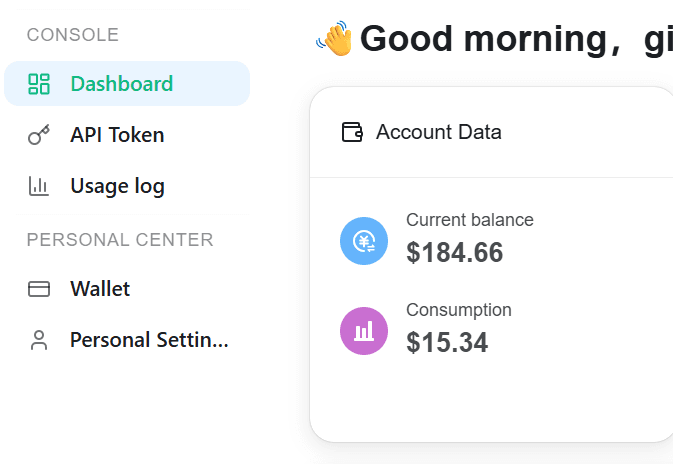
Current balance is the credit you have available, and Consumption is your usage so far.
Agent Router is a third-party service, operated independently from Anthropic. Before using it for production workloads, review its pricing model and current rates, privacy policy and data handling, terms of service, model availability and limits, and any usage or fair-use restrictions. The interface and features change, so treat Agent Router's own documentation as the source of truth.
Step 3: Generate an API Key
Once you are logged in to Agent Router:
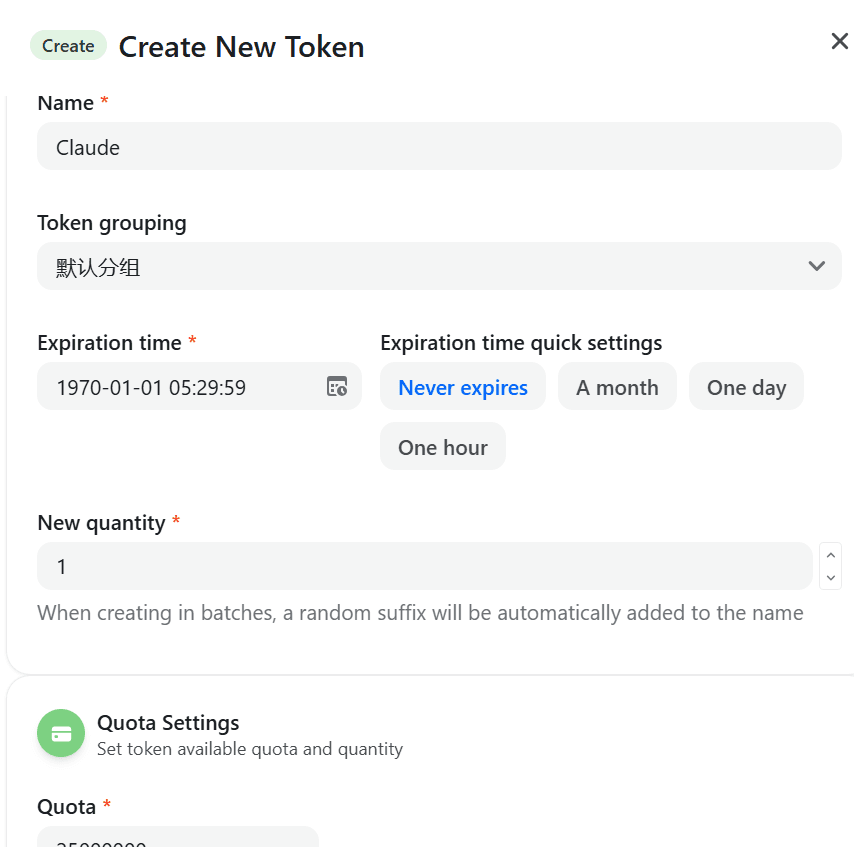
- Open the API Token section in the left sidebar — on some versions of the dashboard it sits under Settings or Account
- Click Create New API Key (or Generate Token)
- Give the key a descriptive name, such as "Claude Code – Development", "VS Code Integration" or "Local Machine Setup", so you can remember later what each key is for
- Set the permissions if the option is offered — more restrictive is better
- Click Generate
- Copy the entire API key immediately. You won't be shown it again, so don't close the window until you have saved it somewhere
- Store it in a password manager (1Password, Bitwarden, LastPass) or a
.envfile — never in version control
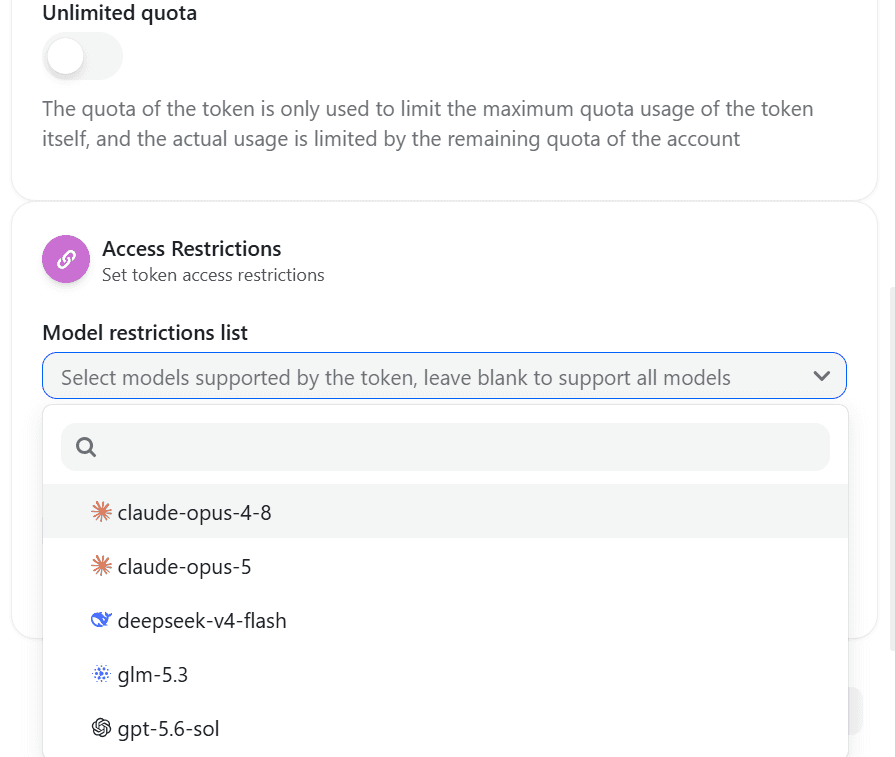
The same screen is also where you restrict which models the key may call:
Security warning: never put a real API key in a public repository, a screenshot, or documentation. The placeholders below are deliberate — substitute your own values locally.
Step 4: Configure Claude Code
Now point Claude Code at Agent Router's endpoint instead of the default one, by setting three environment variables.
Linux and macOS
export ANTHROPIC_AUTH_TOKEN="YOUR_AGENT_ROUTER_API_KEY"
export ANTHROPIC_BASE_URL="YOUR_AGENT_ROUTER_BASE_URL"
export ANTHROPIC_MODEL="YOUR_MODEL_ID"
Windows PowerShell
$env:ANTHROPIC_AUTH_TOKEN = "YOUR_AGENT_ROUTER_API_KEY"
$env:ANTHROPIC_BASE_URL = "YOUR_AGENT_ROUTER_BASE_URL"
$env:ANTHROPIC_MODEL = "YOUR_MODEL_ID"

# Verify
Get-Item env:ANTHROPIC_AUTH_TOKEN
What each variable means
| VariablePurpose | |
| ANTHROPIC_AUTH_TOKEN | Your Agent Router API key |
| ANTHROPIC_BASE_URL | The Agent Router API endpoint |
| ANTHROPIC_MODEL | The Claude model identifier to route to |
Use a model ID that Agent Router actually lists as available — the set of supported models changes, so check its dashboard rather than copying an ID from a guide.
Step 5: Start Claude Code
claude
Claude Code starts with your Agent Router configuration loaded. Because the variables are set per shell session, open Claude Code from the same terminal where you set them, or add the exports to your shell profile to make them permanent.
Security Best Practices
Do
- Store API keys in environment variables
- Keep keys in
.envfiles that are listed in.gitignore - Rotate keys promptly if one is ever exposed
- Use a different key per project, so one leak has a small blast radius
- Treat keys like passwords
Don't
- Paste API keys into GitHub
- Include keys in frontend code, where anyone can read them
- Share screenshots with a visible key
- Commit
.envfiles to version control - Reuse one key everywhere
Set up .gitignore
.env
.env.local
.env.*.local
.env.development
.env.production
Conclusion
Configuring Claude Code with Agent Router gives you flexibility in how you reach Claude models, with credentials and credit usage under your own control. Keep in mind that Agent Router is third-party, so review its documentation and terms; protect your API credentials; monitor usage and cost; and test thoroughly before relying on the setup for production work.